
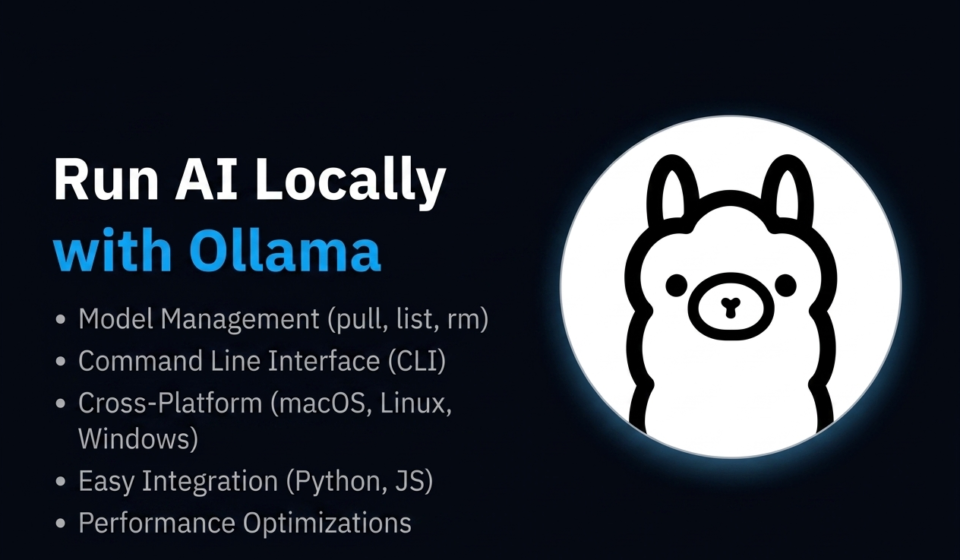

What if you could run a powerful AI model on your own computer — no internet required, no monthly subscription, no data being sent to any server? With a free tool called Ollama, that is exactly what you can do. In this guide, I will show you how to install Ollama, download an AI model, and start running AI locally on your PC or Mac, even if you have never done anything like this before.
What Is Ollama?
Ollama is a free, open-source tool that lets you download and run large language models (LLMs) directly on your computer. Instead of sending your prompts to OpenAI’s servers or Google’s servers, everything happens locally on your own machine. Your conversations stay private, you do not need a paid subscription, and you can use it without an internet connection once the model is downloaded.
Ollama supports dozens of models including Llama 3 (Meta’s open-source model), Mistral, Gemma (Google), Phi-3 (Microsoft), and many others.
What You Need Before You Start
You do not need a high-end gaming PC, but a few minimum requirements help:
- RAM: At least 8 GB, though 16 GB is recommended for running larger models smoothly
- Storage: Between 4 GB and 40 GB free space depending on the model you choose
- Operating System: Windows 10/11, macOS (Apple Silicon or Intel), or Linux
- GPU (Optional): Ollama can use your CPU alone, but a dedicated GPU (NVIDIA or Apple Silicon) makes responses significantly faster
Step 1: Download and Install Ollama
Go to ollama.com and download the version for your operating system. The installation process is straightforward:
- On Windows: Run the downloaded .exe file and follow the installer prompts
- On macOS: Open the downloaded .dmg file and drag Ollama to your Applications folder
- On Linux: Open your terminal and run the one-line install command shown on the Ollama website
Once installed, Ollama runs quietly in the background. You will see its icon in your system tray or menu bar.
Step 2: Choose and Download Your First Model
Ollama has a library of models at ollama.com/library. For beginners, I recommend starting with one of these:
- Llama 3.2 (3B) — Fast and lightweight, great for everyday tasks, runs on most computers
- Mistral (7B) — Strong general-purpose model with excellent reasoning
- Phi-3 Mini — Microsoft’s efficient small model, surprisingly capable for its size
- Gemma 2 (2B) — Google’s compact model, very fast
To download and run a model, open your terminal (Command Prompt on Windows, Terminal on Mac) and type:
ollama run llama3.2Ollama will automatically download the model (this may take a few minutes depending on your internet speed) and then launch a chat interface directly in your terminal. You can start typing your prompts immediately.
Step 3: Have a Conversation With Your Local AI
Once the model loads, you will see a prompt cursor in your terminal. Simply type your message and press Enter. The model responds locally, with no internet connection needed.
To exit the chat, type /bye and press Enter.
To run a different model next time, just use a different model name:
ollama run mistralModels you have already downloaded are stored locally, so they launch instantly on future uses.
Step 4: Use a Visual Interface (Optional but Recommended)
Typing in a terminal works, but most people prefer a proper chat interface. The easiest free option is Open WebUI, which gives you a browser-based chat experience that looks and feels like ChatGPT, but talks to your local Ollama models instead.
Another popular option is Msty, a desktop app that connects to Ollama with a clean, minimal interface. Both are free and beginner-friendly.
What Can You Actually Do With Local AI?
Local AI is surprisingly capable for everyday tasks:
- Drafting emails, blog posts, and social media content
- Summarising long documents or articles
- Answering questions and explaining concepts
- Writing and reviewing code
- Brainstorming ideas and creating outlines
- Translation and language practice
The main limitation compared to cloud-based models like GPT-4 is that smaller local models may be less accurate on highly specialised topics. But for most everyday use cases, they perform extremely well.
Why Run AI Locally?
The biggest reason is privacy. If you are working with sensitive business data, personal information, or confidential client documents, running AI locally means that data never leaves your computer. There is also no usage limit and no per-message cost, which makes it ideal for heavy users.
Final Thoughts
Running AI locally is one of those things that feels complicated until you actually try it — and then it takes about five minutes. Ollama has made the whole process genuinely beginner-friendly, and once you have it set up, you will wonder why you did not try it sooner.
Watch the full video tutorial above to see the complete installation walkthrough on screen. If you run into any issues during setup, leave a comment below and I will walk you through it.